
After completing this lesson, you’ll be able to:
In this lesson, you will:
After completing this lesson, you’ll be able to:
In this lesson, you will:
If you're taking a live Safe Software-hosted training course or using an on-demand lab for this course, we've already imported the content for this lesson into your FME Flow.
If you're completing this lesson with your own FME Flow, you must import the starting project with the content into your FME Flow. If you don't want to import this project into your own FME Flow, you can just read along; however, later exercises in the learning path will require you to import the project.
See FME Flow Authoring: Instructions to Import the Starting Project for directions to import the project to your own FME Flow.
Énergir is Quebec's leading natural gas distributor, processing nearly 50,000 locate requests annually — a critical "Call Before You Dig" safety process designed to prevent accidental damage to underground gas infrastructure during excavation. Demand is highly seasonal, with requests surging to 7,000–8,000 per month in summer versus as few as 100 in winter. To manage this operational strain without sacrificing safety, Énergir's GIS team leveraged FME Flow to modernize how locate requests are classified, validated, and fulfilled — shifting from a labor-intensive, field-first approach to a smarter, data-driven model. The result has been a significant reduction in unnecessary technician site visits, improved data accuracy, and the extension of automation into areas like construction management and emergency preparedness.
To improve turnaround times for construction-related work, Énergir's GIS team built no-code web apps that enable engineers and site teams to upload construction files via a simple interface. These apps automatically validate, convert, and route uploaded files to the appropriate systems — eliminating the need for technical staff to manually intervene at each handoff. Once construction wraps up, teams submit as-built plans through the same app, and FME immediately integrates the data into a GIS through connected workflows. This approach has significantly reduced manual processing and the back-and-forth communication that previously slowed projects, allowing both field and office staff to focus on higher-value tasks.
Énergir uses FME Flow to run a broad set of automated workflows — over 100 in total — that handle everything from locate request classification to emergency monitoring. Every 10 minutes, an automated process analyzes incoming dig polygons against GIS data to determine whether a field technician is actually required, enabling roughly 18% of requests (close to 9,000 per year) to be resolved without a site visit. Each evening, a separate validation workflow reviews recent locate sketches to assess whether they can be reused for future nearby requests, avoiding redundant fieldwork. Énergir has also automated wildfire risk monitoring: rather than having staff manually check government websites each day, FME pulls updated wildfire data from provincial sources, runs proximity analysis against company infrastructure, and sends automated email alerts when assets are at risk — replacing a manual, error-prone process with a reliable, real-time safety system.
In this exercise, you will explore the power of FME Flow by investigating and running FME Flow's two most popular features - Flow Apps and Automations - to replicate a similar scenario to Énergir's user story.
 Part 1: Flow App
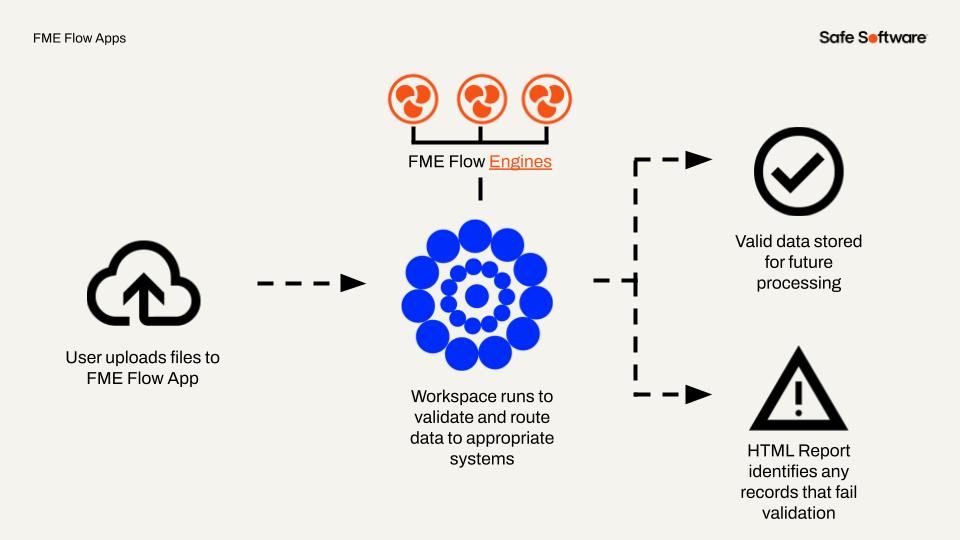
For this part, you will submit some building footprints for validation through a Flow App mimicking engineers uploading construction files for processing. Using a Flow App, engineers can easily submit files through a simple interface without logging in or accessing FME Flow. Once FME processes the files in the workspace, it writes them to FME Flow Resources, where an Automation later processes them into a geodatabase.
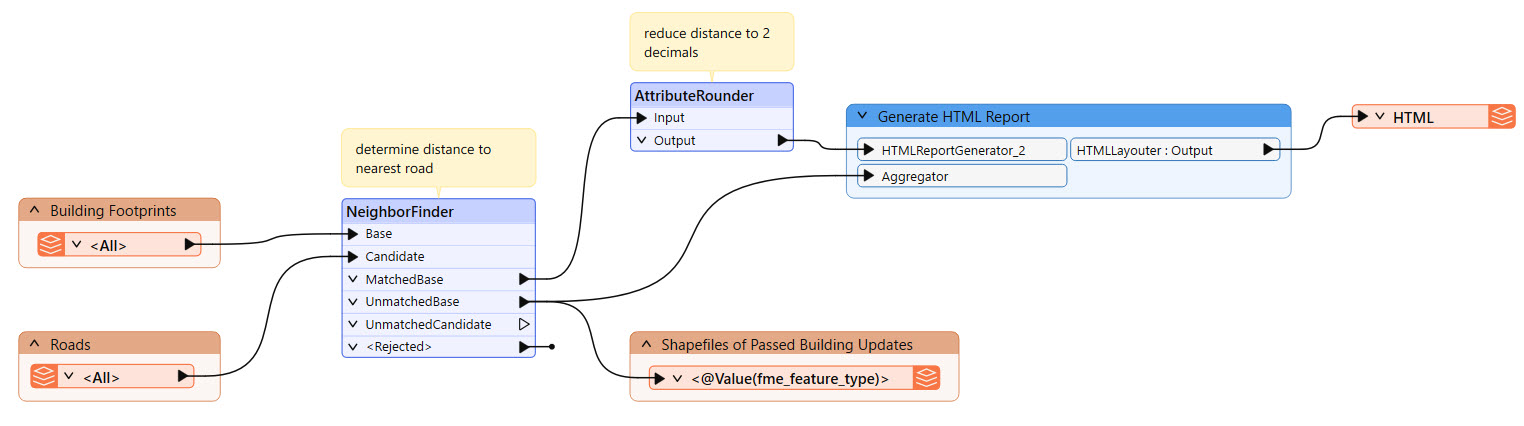
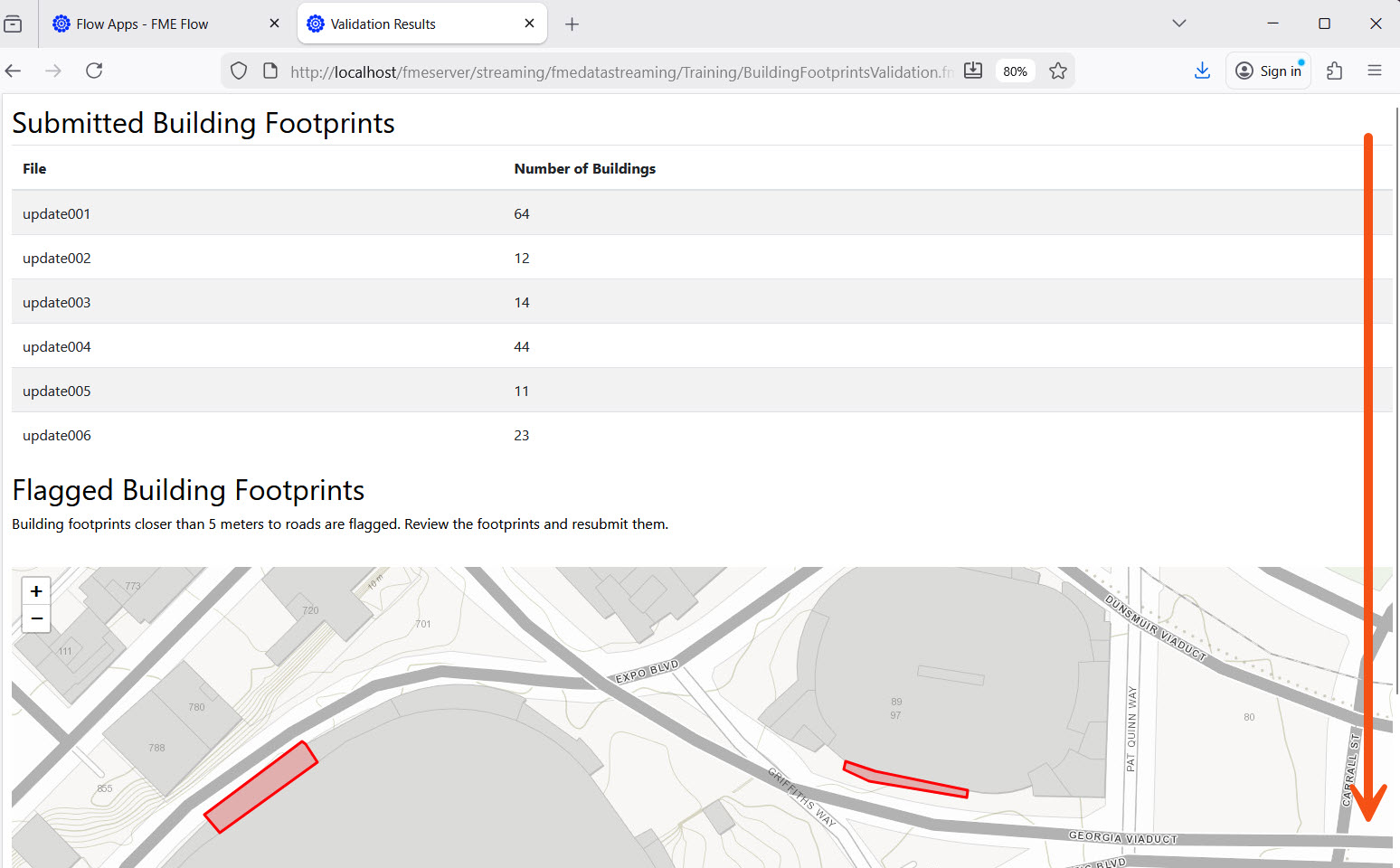
The workspace this app uses is fairly simple: it reads in the building footprints and a roads dataset, uses a NeighborFinder to determine the distance to the nearest road for each footprint, and writes the building footprints that are more than 5 m from any road to a shapefile in FME Flow Resources. Using the results from the NeighborFinder, the workspace generates a summary HTML report that displays to the user when they run the workspace on FME Flow.
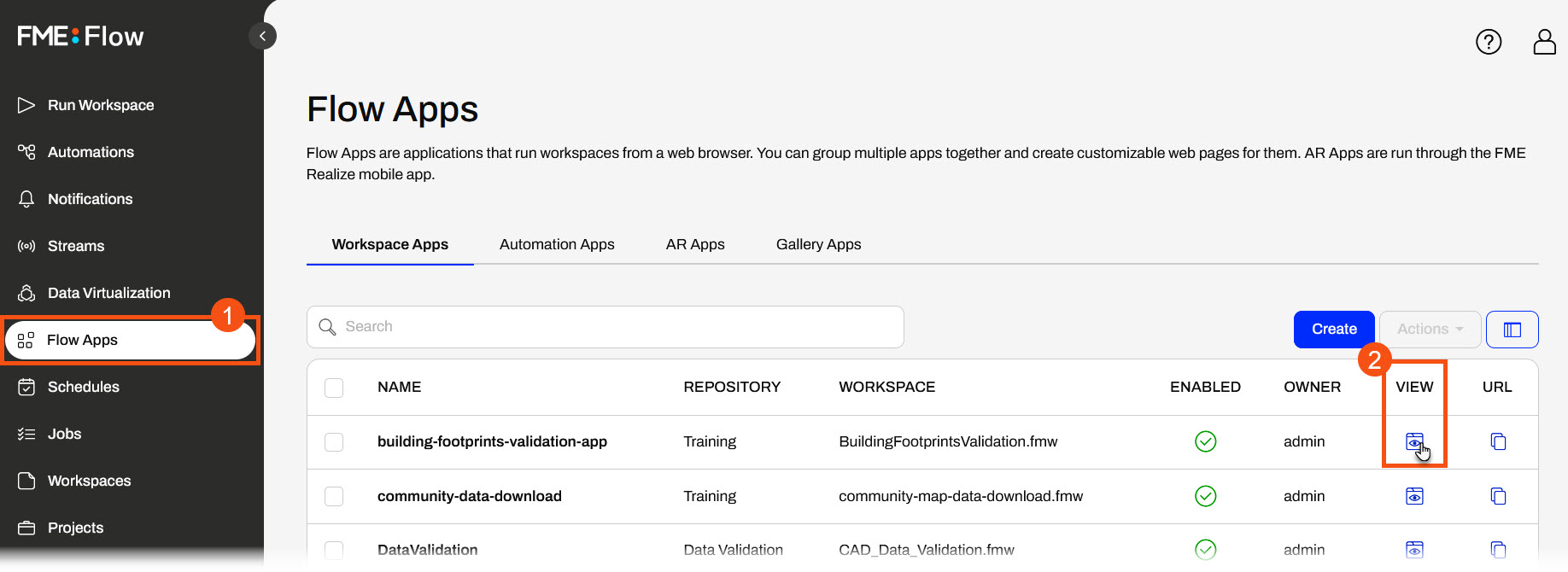
From the FME Flow side menu, open Flow Apps. A list of workspace apps on FME Flow will open. For the building-footprints-validation-app, click the Open App icon  in the View column.
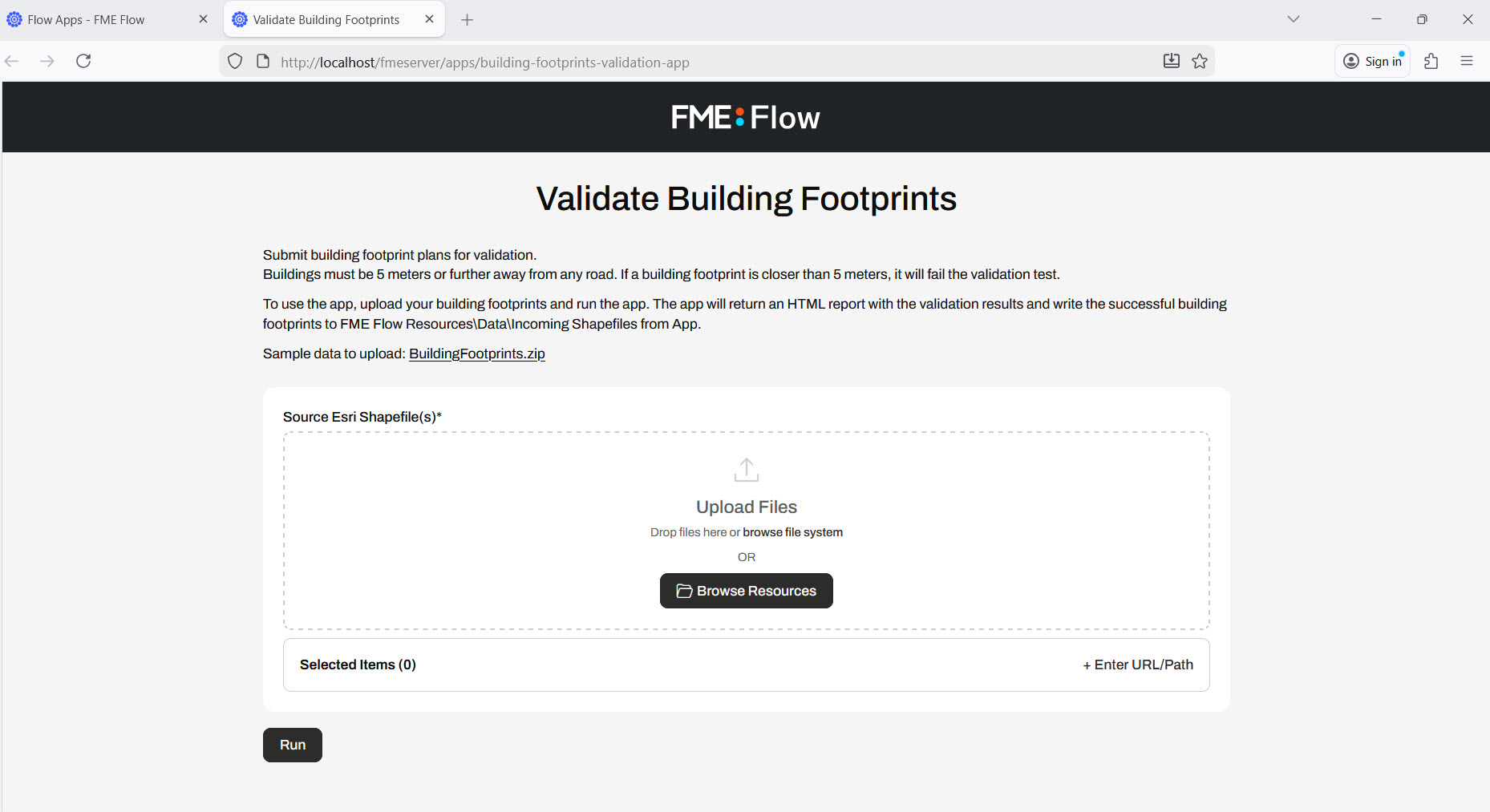
The app will open in another tab. It has a title, description, and an area to upload files for processing.
Open the File Explorer and navigate to C:\FMEData\Data\Engineering. Drag and drop the buildingfootprints.zip file into the Upload Files area.
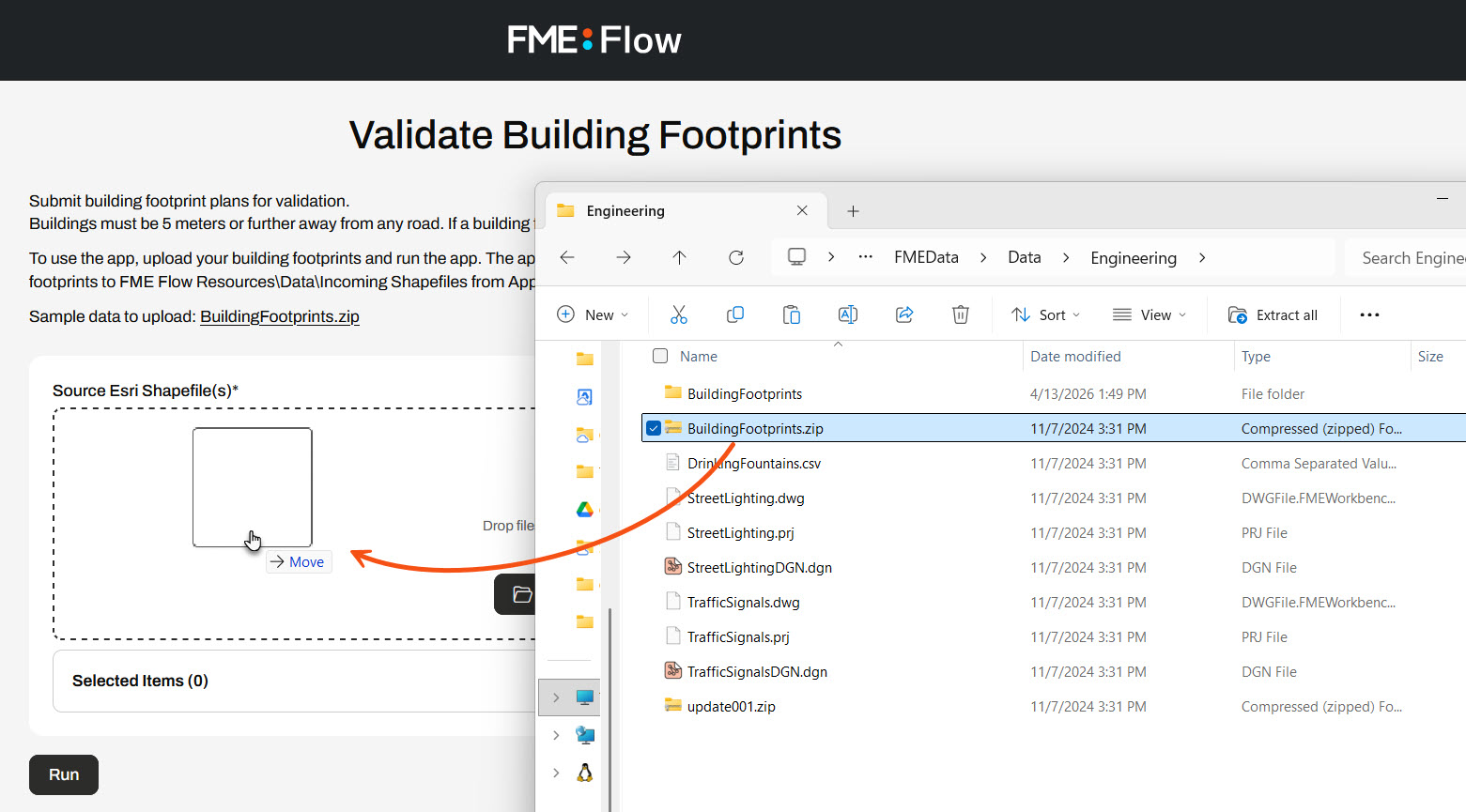
Once you drop the file in the Upload Files area, the Selected Items will update to show the uploaded BuildingFootprints.zip file.
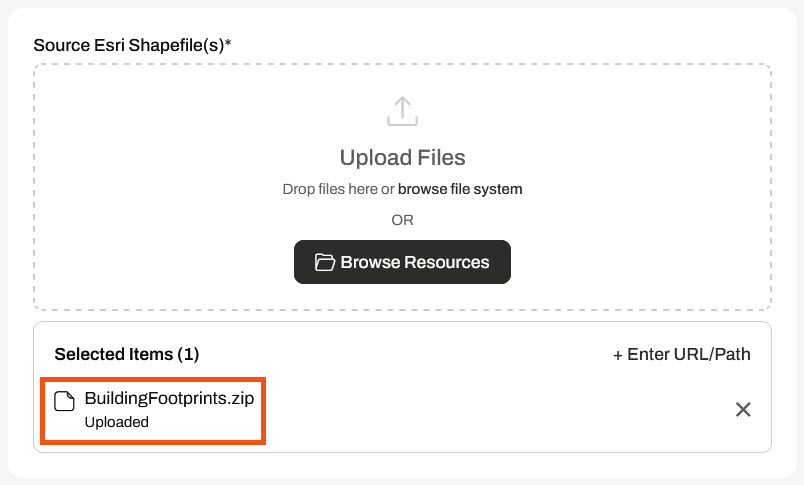
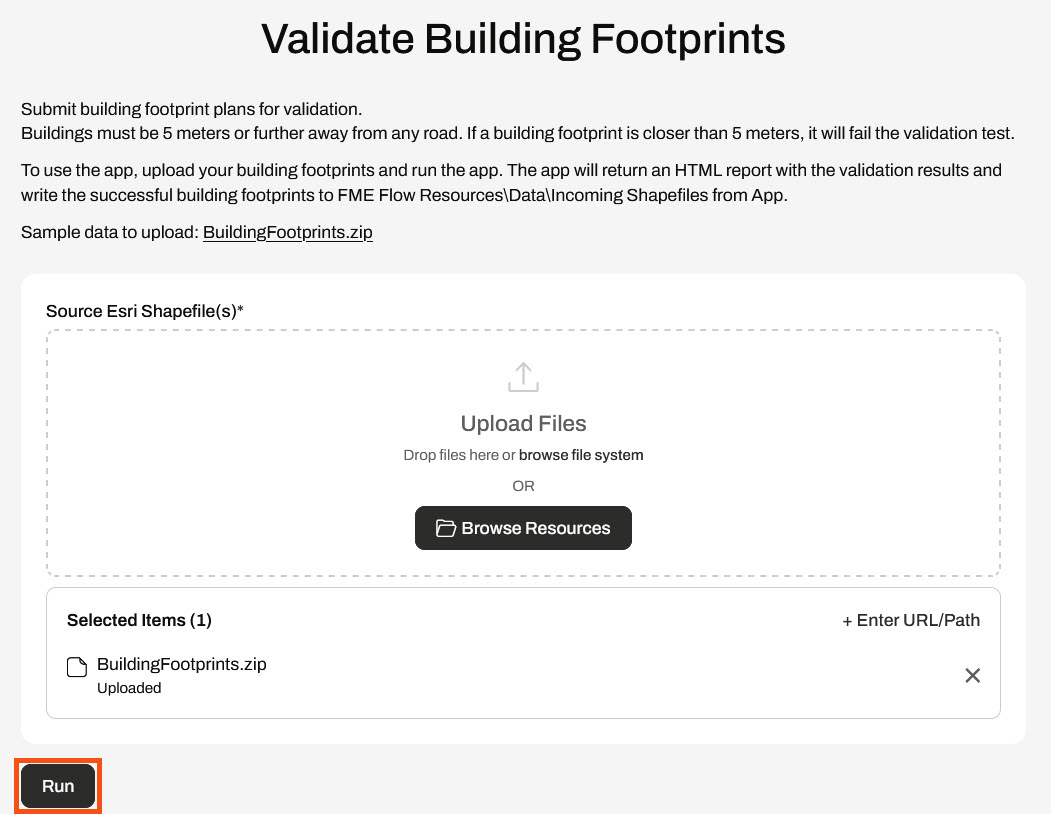
After uploading the file, click Run to submit the file through the app.
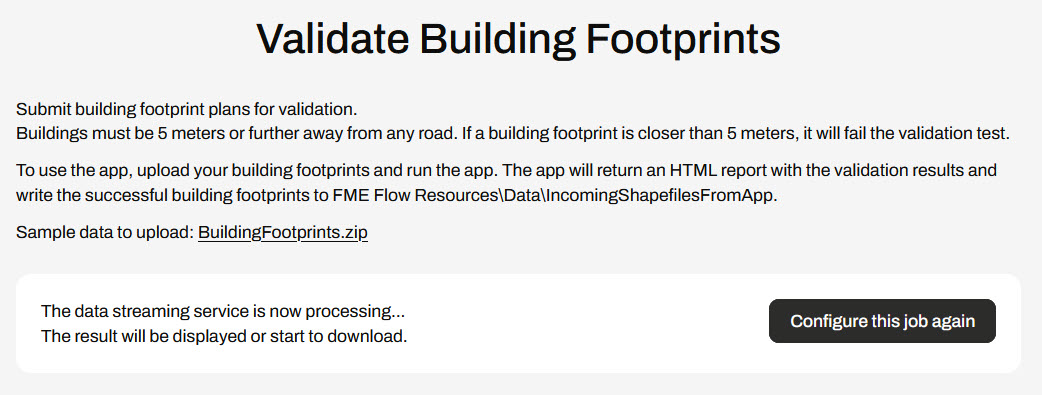
FME Flow runs a workspace to process the file and writes the individual shapefiles in Resources. As the workspace is processing, FME Flow displays that the data streaming service is processing.
Once the workspace completes, FME Flow displays the HTML summary report to the app user. Scroll down to see the entire report.
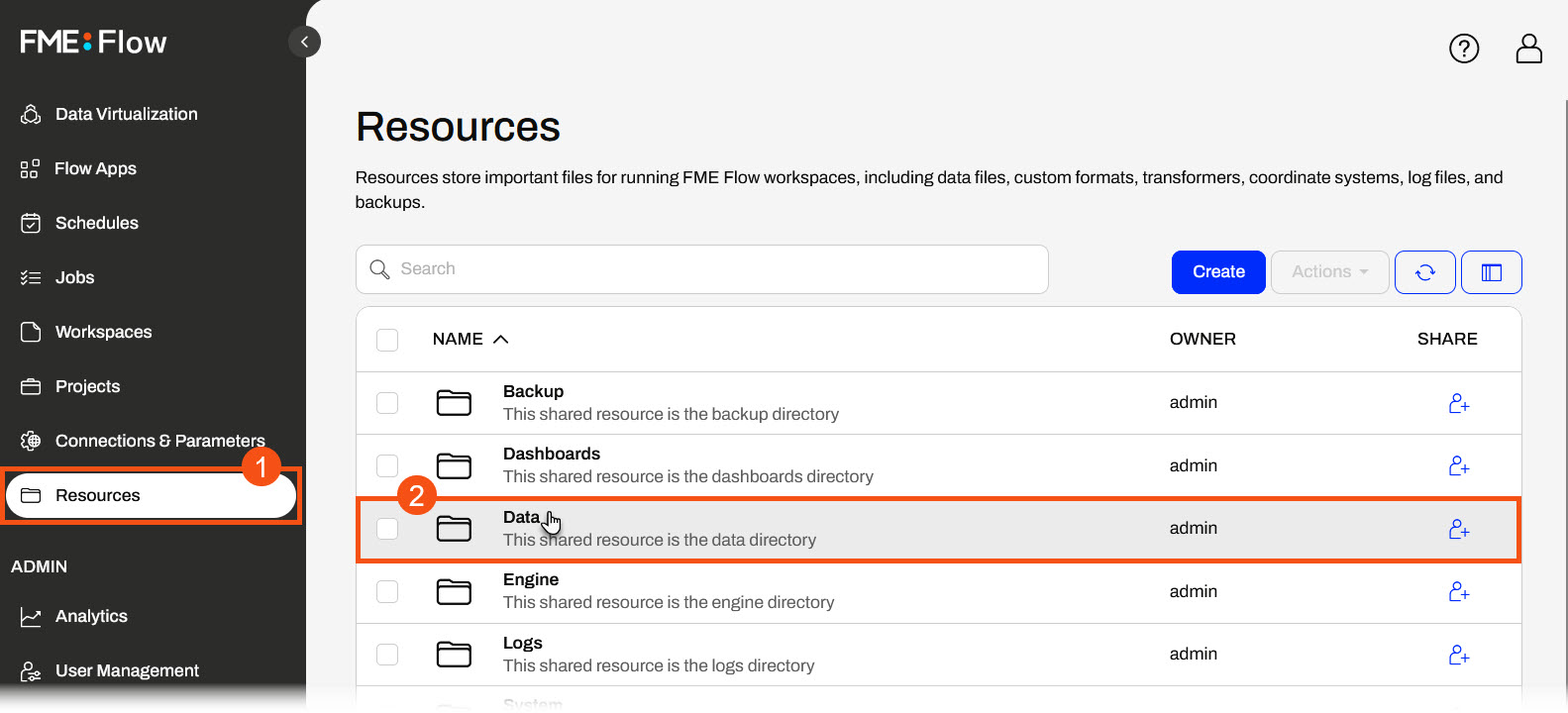
Return to FME Flow and open Resources on the side menu. Select the Data folder and then open the IncomingShapefilesFromApp folder.
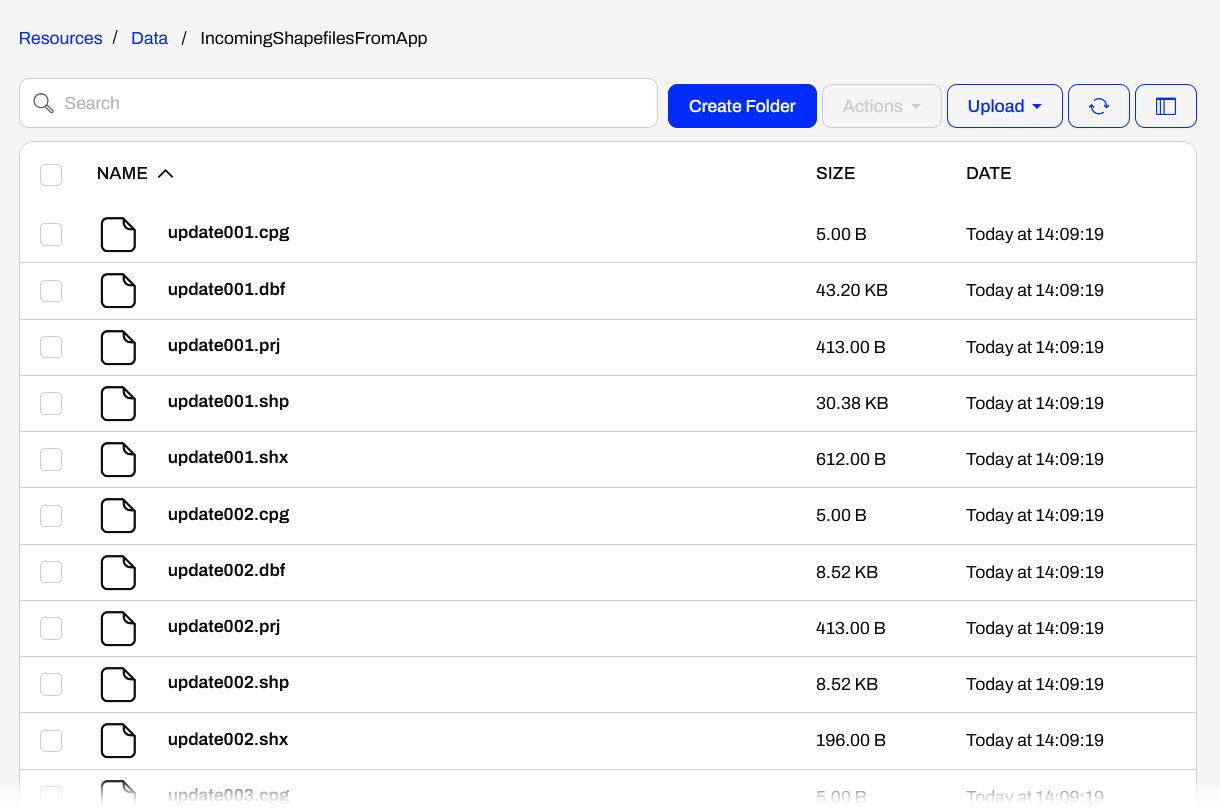
You'll see six shapefiles containing updates from the building footprints you uploaded to the app.
 Part 2: Automation
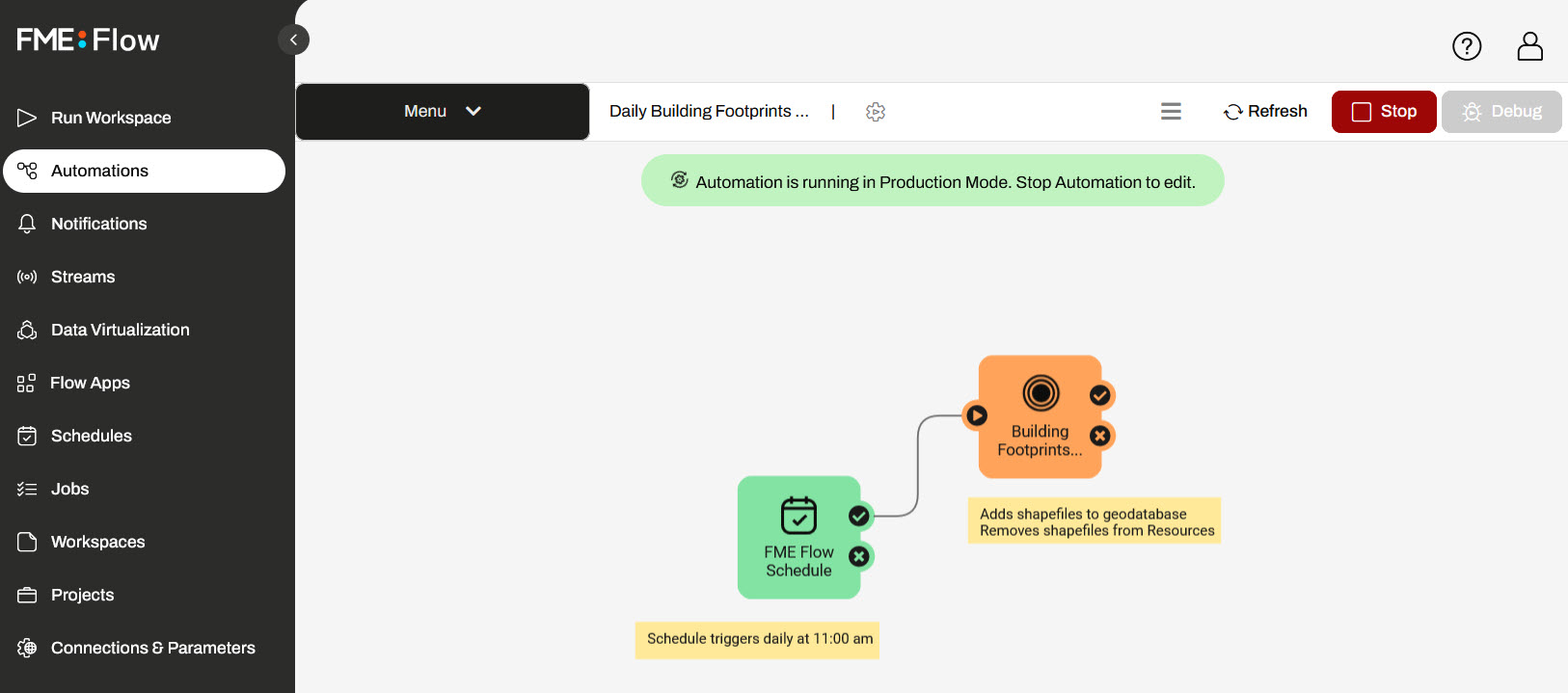
For this part, you will trigger an Automation that runs daily to process the building footprints shapefiles into a geodatabase. The Automation contains a Schedule trigger that runs daily at 11:00 am, which in turn triggers a workspace.
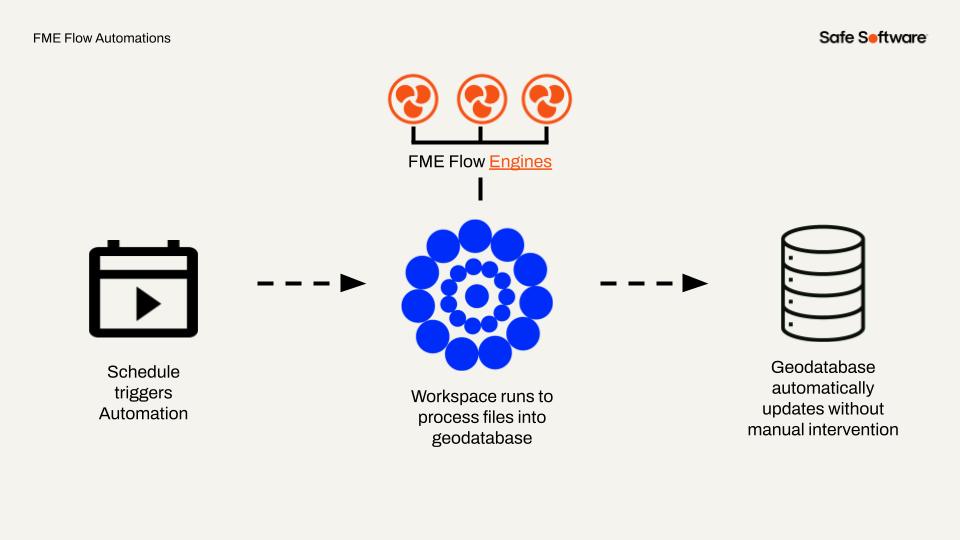
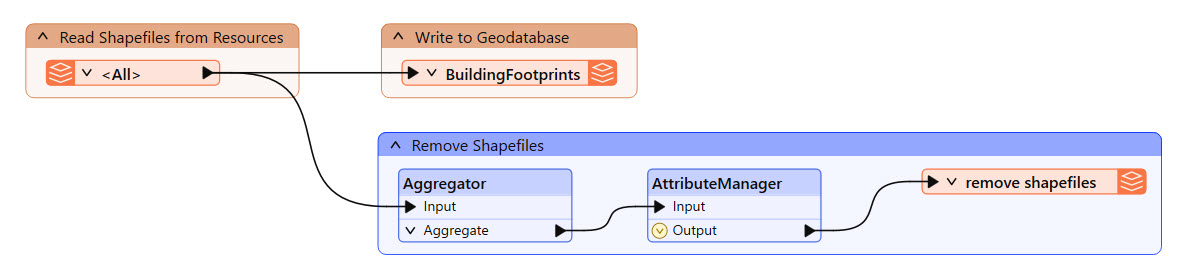
The workspace reads the shapefiles you uploaded in the Flow App, writes them to the buildingfootprints.gdb geodatabase, and then removes them.
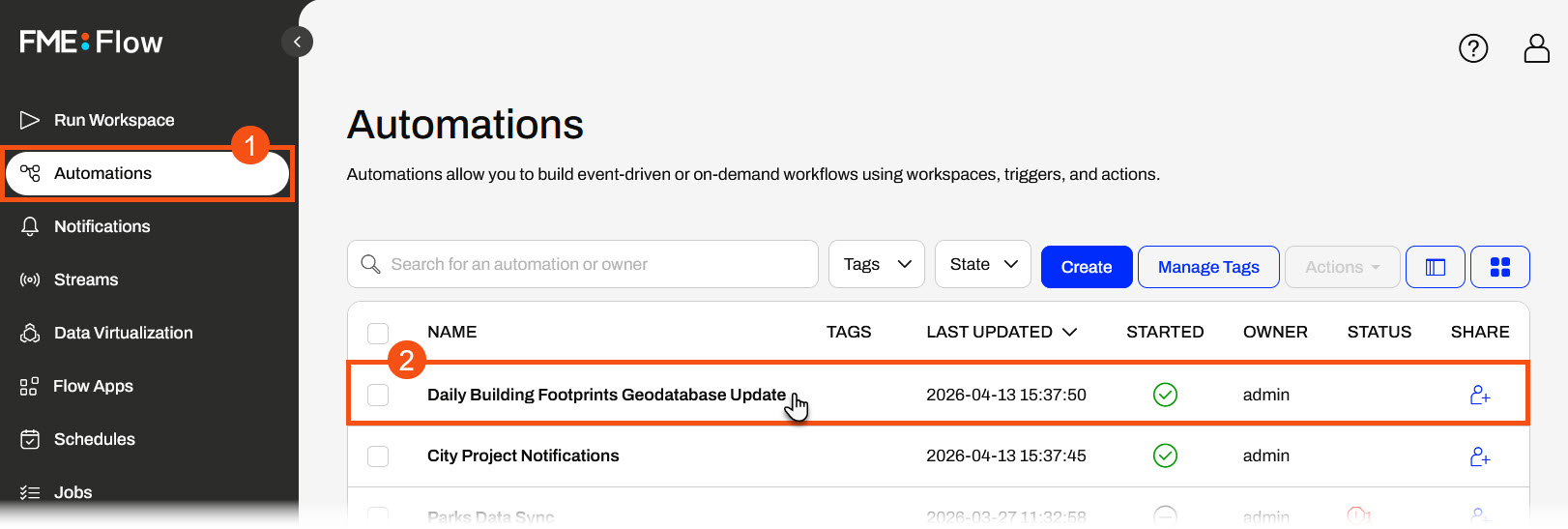
From the FME Flow side menu, open Automations. From the list, select the Daily Building Footprints Geodatabase Update automation.
The automation has a schedule trigger and an action to run a workspace. The schedule is set to trigger daily at 11:00 am. The workspace reads all shapefiles in the Resources/Data/IncomingShapefilesFromApp folder and processes them into a geodatabase.
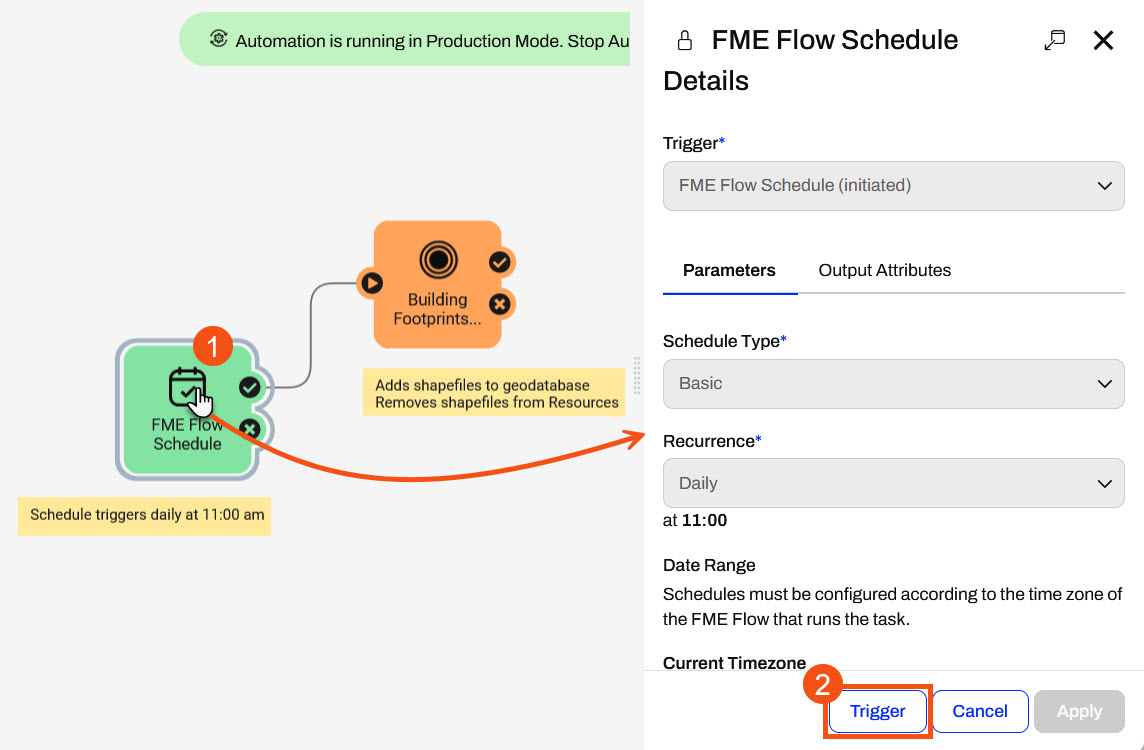
Rather than waiting for FME Flow to trigger the automation at 11:00 am, you'll trigger it to run manually now that you've uploaded shapefiles with the Flow App.
Click the Schedule icon to open the FME Flow Schedule trigger details. At the bottom of the details pane, click Trigger.
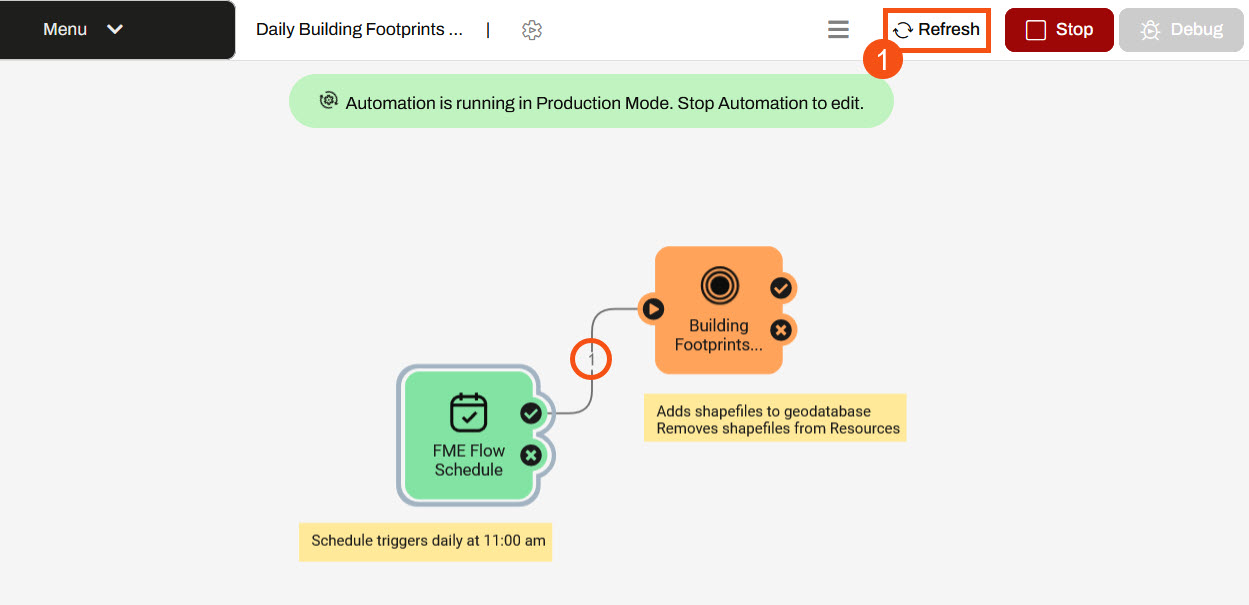
You'll see a green message in the top-right indicating that the schedule was triggered. Click Refresh to see the event counts update.
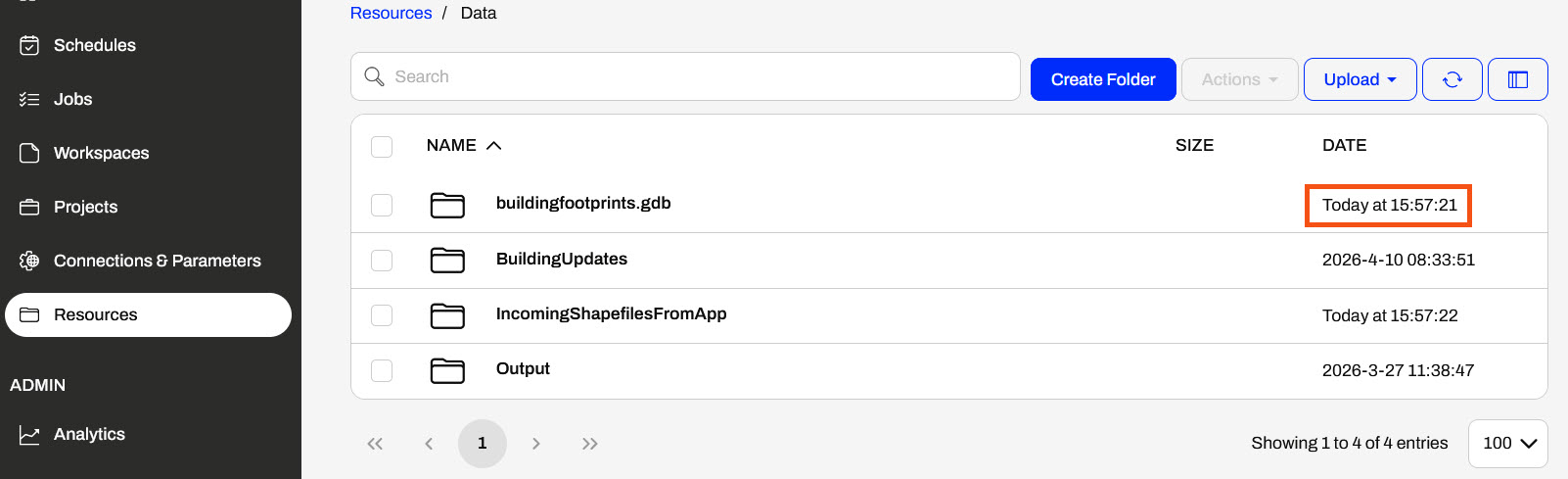
From the FME Flow side menu, open Resources. The buildingfootprints.gdb timestamp will show a recent update.
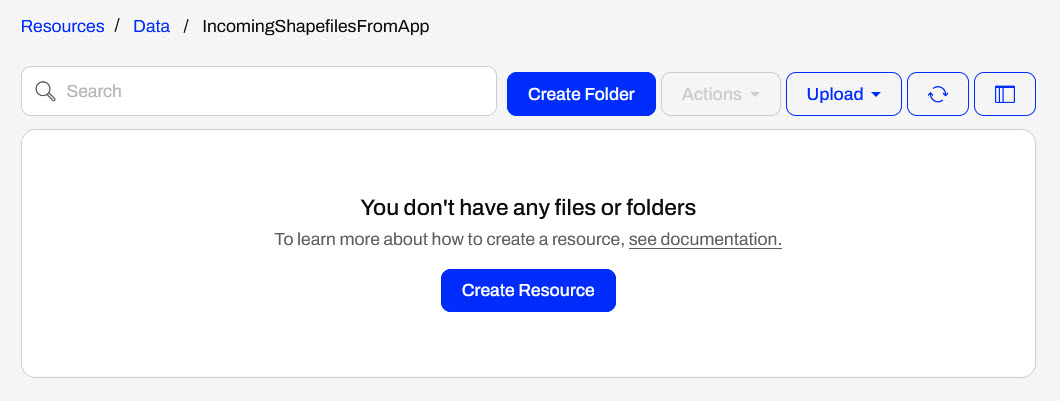
And, when you open the IncomingShapefilesFromApp folder, you will notice that the workspace also removes the shapefiles of building footprints.
You've now run a self-serve web app and triggered an automation — two of FME Flow's powerful features. With the Flow App, you submitted building footprint data through a no-code web interface and saw how FME Flow ran a workspace behind the scenes to process and write the results. With the Automation, you triggered a scheduled workflow that converted those shapefiles into a geodatabase, simulating the kind of daily, unattended data processing that FME Flow handles in production environments.
Together, these two features represent FME Flow's ability to democratize data access and eliminate manual effort — whether by giving end users a simple interface to run complex workflows, or by letting those workflows run themselves on a schedule. Here are some reflection questions to get you thinking about how FME Flow can benefit you and your organization:
If you're taking a live Safe Software-hosted training course or using an on-demand lab for this course, we've already imported the content for this lesson into your FME Flow.
If you're completing this lesson with your own FME Flow, you must import the starting project with the content into your FME Flow. If you don't want to import this project into your own FME Flow, you can just read along; however, later exercises in the learning path will require you to import the project.
See FME Flow Authoring: Instructions to Import the Starting Project for directions to import the project to your own FME Flow.
Énergir is Quebec's leading natural gas distributor, processing nearly 50,000 locate requests annually — a critical "Call Before You Dig" safety process designed to prevent accidental damage to underground gas infrastructure during excavation. Demand is highly seasonal, with requests surging to 7,000–8,000 per month in summer versus as few as 100 in winter. To manage this operational strain without sacrificing safety, Énergir's GIS team leveraged FME Flow to modernize how locate requests are classified, validated, and fulfilled — shifting from a labor-intensive, field-first approach to a smarter, data-driven model. The result has been a significant reduction in unnecessary technician site visits, improved data accuracy, and the extension of automation into areas like construction management and emergency preparedness.
To improve turnaround times for construction-related work, Énergir's GIS team built no-code web apps that enable engineers and site teams to upload construction files via a simple interface. These apps automatically validate, convert, and route uploaded files to the appropriate systems — eliminating the need for technical staff to manually intervene at each handoff. Once construction wraps up, teams submit as-built plans through the same app, and FME immediately integrates the data into a GIS through connected workflows. This approach has significantly reduced manual processing and the back-and-forth communication that previously slowed projects, allowing both field and office staff to focus on higher-value tasks.
Énergir uses FME Flow to run a broad set of automated workflows — over 100 in total — that handle everything from locate request classification to emergency monitoring. Every 10 minutes, an automated process analyzes incoming dig polygons against GIS data to determine whether a field technician is actually required, enabling roughly 18% of requests (close to 9,000 per year) to be resolved without a site visit. Each evening, a separate validation workflow reviews recent locate sketches to assess whether they can be reused for future nearby requests, avoiding redundant fieldwork. Énergir has also automated wildfire risk monitoring: rather than having staff manually check government websites each day, FME pulls updated wildfire data from provincial sources, runs proximity analysis against company infrastructure, and sends automated email alerts when assets are at risk — replacing a manual, error-prone process with a reliable, real-time safety system.
In this exercise, you will explore the power of FME Flow by investigating and running FME Flow's two most popular features - Flow Apps and Automations - to replicate a similar scenario to Énergir's user story.
Part 1: Flow AppFor this part, you will submit some building footprints for validation through a Flow App mimicking engineers uploading construction files for processing. Using a Flow App, engineers can easily submit files through a simple interface without logging in or accessing FME Flow. Once FME processes the files in the workspace, it writes them to FME Flow Resources, where an Automation later processes them into a geodatabase.
The workspace this app uses is fairly simple: it reads in the building footprints and a roads dataset, uses a NeighborFinder to determine the distance to the nearest road for each footprint, and writes the building footprints that are more than 5 m from any road to a shapefile in FME Flow Resources. Using the results from the NeighborFinder, the workspace generates a summary HTML report that displays to the user when they run the workspace on FME Flow.
From the FME Flow side menu, open Flow Apps. A list of workspace apps on FME Flow will open. For the building-footprints-validation-app, click the Open App icon in the View column.
The app will open in another tab. It has a title, description, and an area to upload files for processing.
Open the File Explorer and navigate to C:\FMEData\Data\Engineering. Drag and drop the buildingfootprints.zip file into the Upload Files area.
Once you drop the file in the Upload Files area, the Selected Items will update to show the uploaded BuildingFootprints.zip file.
After uploading the file, click Run to submit the file through the app.
FME Flow runs a workspace to process the file and writes the individual shapefiles in Resources. As the workspace is processing, FME Flow displays that the data streaming service is processing.
Once the workspace completes, FME Flow displays the HTML summary report to the app user. Scroll down to see the entire report.
Return to FME Flow and open Resources on the side menu. Select the Data folder and then open the IncomingShapefilesFromApp folder.
You'll see six shapefiles containing updates from the building footprints you uploaded to the app.
Part 2: AutomationFor this part, you will trigger an Automation that runs daily to process the building footprints shapefiles into a geodatabase. The Automation contains a Schedule trigger that runs daily at 11:00 am, which in turn triggers a workspace.
The workspace reads the shapefiles you uploaded in the Flow App, writes them to the buildingfootprints.gdb geodatabase, and then removes them.
From the FME Flow side menu, open Automations. From the list, select the Daily Building Footprints Geodatabase Update automation.
The automation has a schedule trigger and an action to run a workspace. The schedule is set to trigger daily at 11:00 am. The workspace reads all shapefiles in the Resources/Data/IncomingShapefilesFromApp folder and processes them into a geodatabase.
Rather than waiting for FME Flow to trigger the automation at 11:00 am, you'll trigger it to run manually now that you've uploaded shapefiles with the Flow App.
Click the Schedule icon to open the FME Flow Schedule trigger details. At the bottom of the details pane, click Trigger.
You'll see a green message in the top-right indicating that the schedule was triggered. Click Refresh to see the event counts update.
From the FME Flow side menu, open Resources. The buildingfootprints.gdb timestamp will show a recent update.
And, when you open the IncomingShapefilesFromApp folder, you will notice that the workspace also removes the shapefiles of building footprints.
You've now run a self-serve web app and triggered an automation — two of FME Flow's powerful features. With the Flow App, you submitted building footprint data through a no-code web interface and saw how FME Flow ran a workspace behind the scenes to process and write the results. With the Automation, you triggered a scheduled workflow that converted those shapefiles into a geodatabase, simulating the kind of daily, unattended data processing that FME Flow handles in production environments.
Together, these two features represent FME Flow's ability to democratize data access and eliminate manual effort — whether by giving end users a simple interface to run complex workflows, or by letting those workflows run themselves on a schedule. Here are some reflection questions to get you thinking about how FME Flow can benefit you and your organization: